# Complex and nested assets
This approach is for [units under test](https://dev.nominal.io/platform/reference/glossary.md#unit-under-test-uut "The device or system being tested, also called a device under test (DUT).") built from components that are tested on their own and can move from one unit to another.
For example, a vehicle is a system, and each of its swappable battery modules is a component. The system’s controller records the system’s own data, and each component records its own. Between tests, a component can be swapped into another system. You want each system’s data, with whichever components it carried, and each component’s history across every system it has been in.
```mermaid
---
config:
layout: elk
---
flowchart LR
classDef part fill:#f5f5f4,stroke:#57534e,color:#1f2937
subgraph s1["System S1"]
m1["Component C1"]:::part
s1m2["Component C2"]:::part
end
style s1 fill:#fffbeb,stroke:#b45309,color:#1f2937
subgraph s2["System S2"]
m3["Component C3"]:::part
s2m2["Component C2"]:::part
end
style s2 fill:#fffbeb,stroke:#b45309,color:#1f2937
s1m2 -.->|"swapped in between tests"| s2m2
```
## Implementing this approach
Tag every data point with the system and component it belongs to when it’s recorded or uploaded.
```mermaid
---
config:
layout: elk
---
flowchart LR
classDef part fill:#f5f5f4,stroke:#57534e,color:#1f2937
classDef system fill:#fffbeb,stroke:#b45309,color:#1f2937
classDef green fill:#dcfce7,stroke:#15803d,color:#1f2937
%% declared top to bottom, so each row is an entity and its asset
system["System S1"]:::system
subgraph installed["Installed in system S1"]
m1["Component C1"]:::part
m2["Component C2"]:::part
end
style installed fill:#fffbeb,stroke:#b45309,color:#1f2937
systemAsset["Asset: System S1"]:::green
m1Asset["Asset: Component C1"]:::green
m2Asset["Asset: Component C2"]:::green
system --> systemAsset
m1 --> m1Asset
m2 --> m2Asset
click systemAsset,m1Asset,m2Asset href "../../#asset" "Asset"
```
The system’s own data is tagged with its identifier, such as `system`=`S1`. Each component that produces data [tags](https://dev.nominal.io/platform/reference/glossary.md#tag "A key-value pair on your data points, such as motor_id: 1, that lets you filter a subset of points from a single dataset.") it with both its own identifier and its system’s, such as `component`=`C1` and `system`=`S1`. Systems share one [dataset](https://dev.nominal.io/platform/reference/glossary.md#dataset "A store in Nominal for time-series and log data, which grows as you upload or stream more into it."), and components share another.
Give each system and each component a metadata [asset](https://dev.nominal.io/platform/reference/glossary.md#asset "A physical or simulated device or system you track in Nominal, such as a vehicle, a component, a unit under test, or a test stand.") of its own, which filters its type’s dataset on its identifier, such as `component`=`C1`. A system’s asset links the systems dataset under a standard [ref name](https://dev.nominal.io/platform/reference/glossary.md#ref-name "The name an asset or run gives each data source attached to it, such as default. Workbooks and checklists find channels by ref name and channel name."), such as `default`, and the components dataset under another, such as `components`, both filtered on the system’s identifier (`system`=`S1`).
```mermaid
---
config:
layout: elk
---
flowchart BT
classDef green fill:#dcfce7,stroke:#15803d,color:#1f2937
classDef purple fill:#e0e7ff,stroke:#4338ca,color:#1f2937
subgraph systemData["Dataset: Systems"]
s1points["system=S1
09:00:00 · 12.1
..."]:::purple
end
style systemData fill:#f5f7ff,stroke:#4338ca,color:#1f2937
subgraph moduleData["Dataset: Components"]
m1points["component=C1, system=S1
09:00:00 · 41.5
..."]:::purple
m2points["component=C2, system=S1
09:00:00 · 40.9
..."]:::purple
m3points["component=C3, system=S2
09:00:00 · 42.2
..."]:::purple
end
style moduleData fill:#f5f7ff,stroke:#4338ca,color:#1f2937
s1["Asset: System S1"]:::green
systemData -->|"ref name=default
filter system=S1"| s1
moduleData -->|"ref name=components
filter system=S1"| s1
am1["Asset: Component C1"]:::green
am2["Asset: Component C2"]:::green
am3["Asset: Component C3"]:::green
moduleData -->|"ref name=default
filter component=C1"| am1
moduleData -->|"ref name=default
filter component=C2"| am2
moduleData -->|"ref name=default
filter component=C3"| am3
click s1,am1,am2,am3 href "../../#asset" "Asset"
click systemData,moduleData,s1points,m1points,m2points,m3points href "../../#time-series-data" "Time-series data"
```
In this design components have a record of data acquired regardless of system, and systems have a record of their data regardless of component, even when components move.
### Telling the components apart
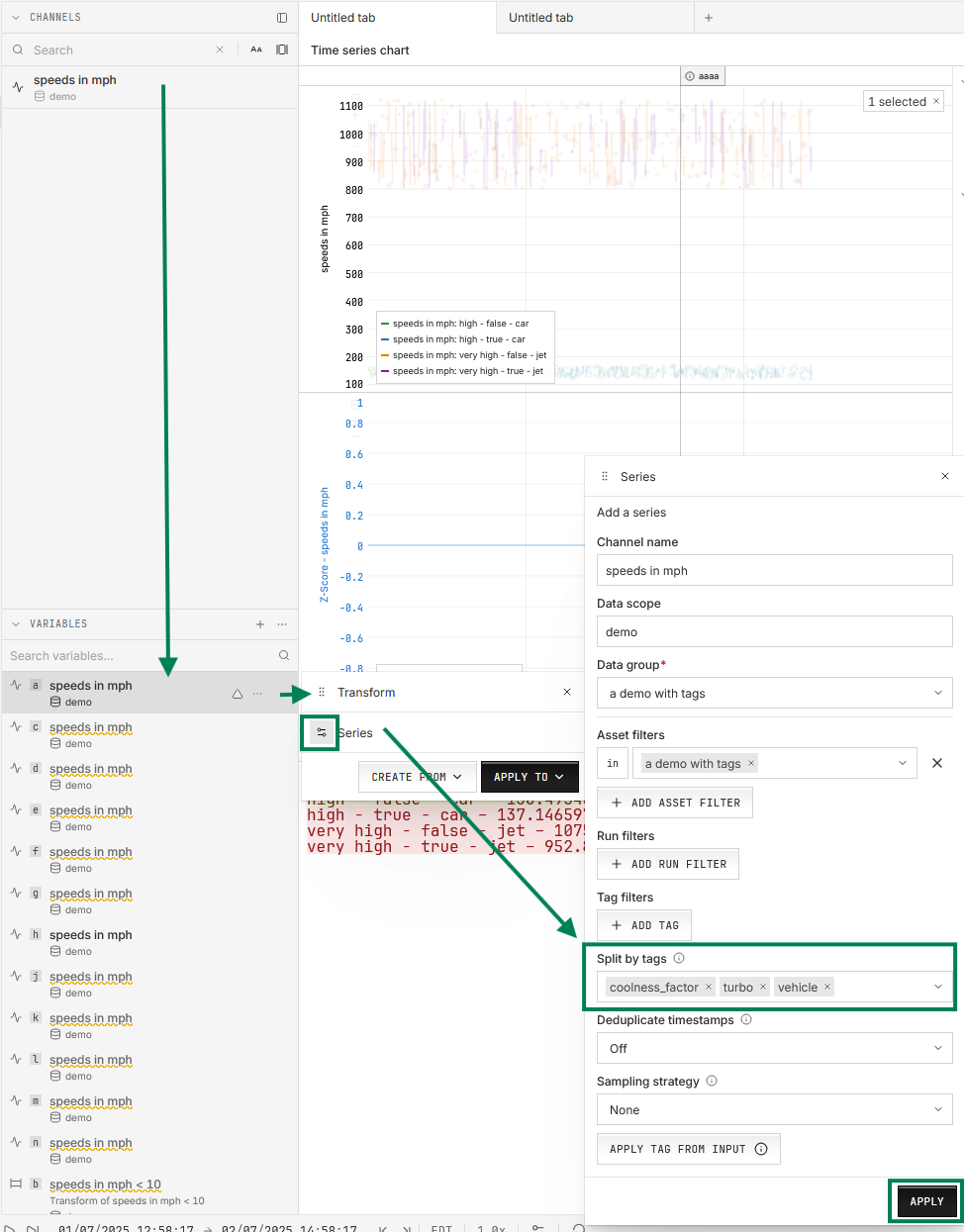
On a system’s asset, every component’s points share their channel names under the `components` ref name, so `components.temperature` holds the temperature of every component in the system. To see each component on its own, split the variable by the `component` tag:
1. In the left sidebar’s **Channels & variables** view, find the **VARIABLES** section, hover over the variable, and click its **Transform** icon.
2. In the **Transform** window, click the settings icon on the **Series** row.
3. In the **Series** window, choose the tag under **Split by tags**, and click **APPLY**.
### In the app
Tag each component’s data with both the component and the system as you upload it:
In the upload wizard’s **Settings** panel:
- To give every row the same tag, under **Tags** click **ADD TAG**, choose or create the tag key, then click its value and choose or create the value.
- To take each row’s tag from a column of the file, under **Tag columns** click **ADD TAG COLUMN** and pick the column. The column’s name becomes the tag key, and you can rename it. Tag columns work for CSV and Parquet files.
Streamed points get their tags from the code that streams them.
Then give each system and each component an asset:
1. In the sidebar, click **Assets**, then **NEW ASSET**.
2. Enter a title, such as `UUT1`.
3. Under **Labels**, pick or create a label, such as `prototype`.
4. Click **Add property**, create a property such as `serial_number`, and enter its value, such as `SN-001`.
5. Click **CREATE ASSET**.
And attach the datasets to each asset with its tag filter:
1. Open the asset. If its properties panel is hidden, open it with the panel icon at the top right, beside **NEW WORKBOOK**. Find the **Data source** section.
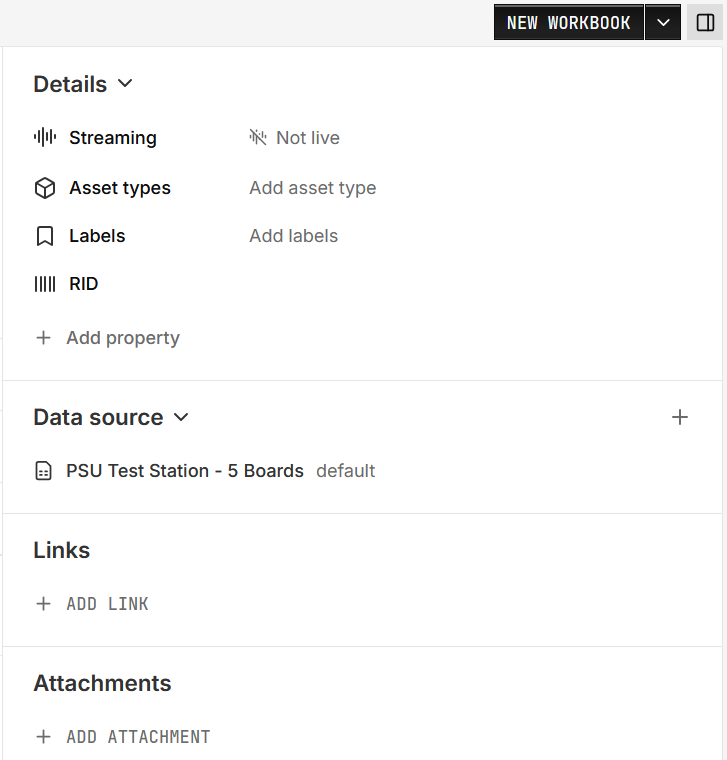
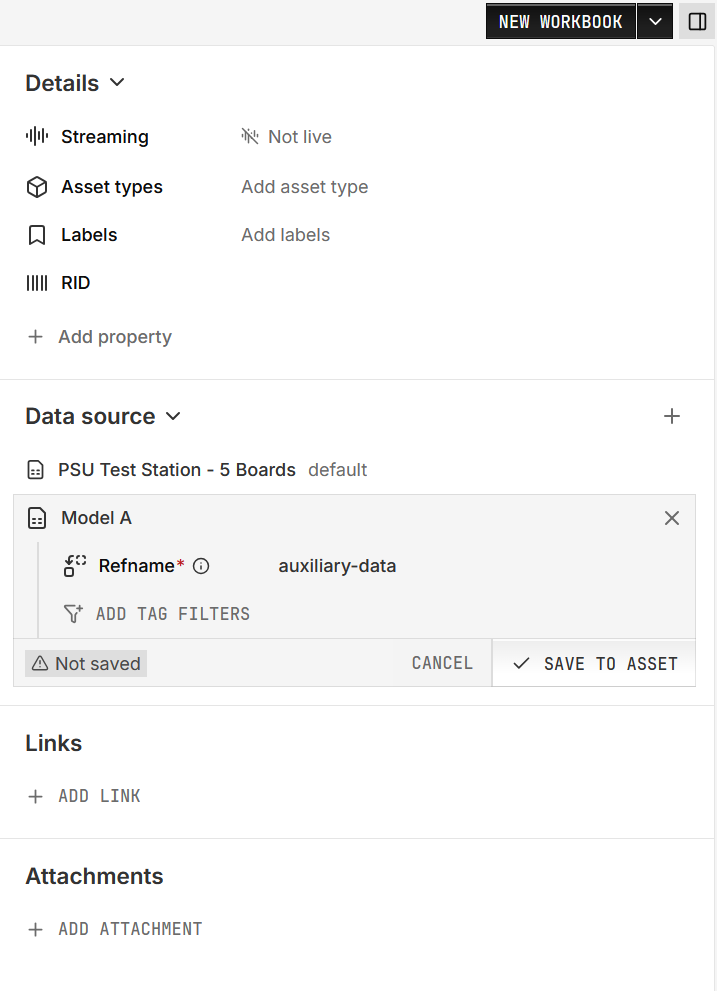
2. Click **+** (**Add data source**) and pick the dataset. If the asset has no data sources yet, click **ADD DATA SOURCE** instead.
3. Under **Refname**, choose or create a [ref name](https://dev.nominal.io/platform/reference/glossary.md#ref-name "The name an asset or run gives each data source attached to it, such as default. Workbooks and checklists find channels by ref name and channel name.").
4. To attach only part of a shared dataset, click **ADD TAG FILTERS**, choose the tag key, then click its value and pick the value.
5. Click **SAVE TO ASSET**.
### In code
In Python, give each system and component an asset with filtered links, then write a component’s points with both tags:
```python
from nominal.core import NominalClient
client = NominalClient.from_profile("default")
systems = client.get_dataset("") # every system's own data
components = client.get_dataset("") # every component's data
system = client.create_asset("S1")
system.add_dataset("default", systems, series_tags={"system": "S1"}) # tag filter: this system's own data
system.add_dataset("components", components, series_tags={"system": "S1"}) # tag filter: the components while they're in S1
for component_id in ["C1", "C2", "C3"]:
component = client.create_asset(component_id)
component.add_dataset("default", components, series_tags={"component": component_id}) # tag filter: this component, in any system
# Each component point carries the component and the system it's in when it's recorded
with components.get_write_stream() as stream:
stream.enqueue("temperature", "2026-01-01T12:00:00Z", 41.5, tags={"component": "C1", "system": "S1"})
```
In Rust, MATLAB, and Go, the [tagged approach’s code](https://dev.nominal.io/platform/data-model/organization/tagged-data.md#tagged-data-code) sets up the same filtered link. Use the tag and ref name for each level in place of the tagged approach’s.
## Extensions
### More levels
The same pattern extends to more levels, such as a fleet, its vehicles, and their battery modules. Tag each point with every level above it, and filter each level’s assets on that level’s tag.