# Controller development
Story: “We’re developing a controller, starting with a handful of dev boards. I probe some signals by hand and script the rest, rework boards as bugs turn up, and want each board’s data live now and comparable later.”
This page is for engineers developing a controller or other board on a small run of development boards, between first bench experiments and production testing.
## How to organize your data
Use the [default approach](https://dev.nominal.io/platform/data-model/organization/per-asset.md). Tracking every board separately takes discipline, but once boards are reworked, configuration management and bug traceability depend on it. Give each board an [asset](https://dev.nominal.io/platform/reference/glossary.md#asset "A physical or simulated device or system you track in Nominal, such as a vehicle, a component, a unit under test, or a test stand.") and a [dataset](https://dev.nominal.io/platform/reference/glossary.md#dataset "A store in Nominal for time-series and log data, which grows as you upload or stream more into it.") of its own, linked under the same [ref name](https://dev.nominal.io/platform/reference/glossary.md#ref-name "The name an asset or run gives each data source attached to it, such as default. Workbooks and checklists find channels by ref name and channel name.") for every board, such as `default`. Every measurement, run, and change then stays with the board it belongs to, and one [workbook](https://dev.nominal.io/platform/reference/glossary.md#workbook "Where you analyze time-series data from assets and runs, in tabs and panels, after a test or live.") or [checklist](https://dev.nominal.io/platform/reference/glossary.md#checklist "A versioned set of checks that you execute on runs or assets to evaluate test data during or after a test.") works on all of them.
Every measurement recorded about a board goes into that board’s dataset, whether you probed it by hand, a script read it, or another tool exported it. As development progresses, automate more of those tests, and check the results with [automated checks](https://dev.nominal.io/platform/data-model/paradigms/stories/automated-checks.md). Record fixed facts about the board, such as its revision, in the asset’s [properties](https://dev.nominal.io/platform/reference/glossary.md#property "A key-value pair, of type Text or Number, that describes an asset, run, or data source, such as an identifier, context, or a quantity.").
```mermaid
---
config:
layout: elk
---
flowchart BT
classDef purple fill:#e0e7ff,stroke:#4338ca,color:#1f2937
classDef blue fill:#e0f2fe,stroke:#0369a1,color:#1f2937
classDef green fill:#dcfce7,stroke:#15803d,color:#1f2937
classDef red fill:#fee2e2,stroke:#b91c1c,color:#1f2937
dataset3[("Dataset
Dev board 3
dmm.dc_voltage
scope.ch1.duty_cycle
...")]:::purple
asset3["Asset: Dev board 3
Properties:
revision=A"]:::green
dataset3 -->|"ref name=default"| asset3
run3["Run: Bring-up
Properties:
firmware=0.3.1"]:::red
asset3 --> run3
workbook3["Live workbook
Dev board 3"]:::blue
asset3 --> workbook3
dataset4[("Dataset
Dev board 4")]:::purple
asset4["Asset: Dev board 4
Properties:
revision=A"]:::green
dataset4 -->|"ref name=default"| asset4
click asset3,asset4 href "../../../#asset" "Asset"
click dataset3,dataset4 href "../../../#time-series-data" "Time-series data"
click run3 href "../../../#runs" "Runs"
click workbook3 href "../../../../workbooks/#live-workbooks" "Live workbooks"
```
Mark test sessions with [runs](https://dev.nominal.io/platform/reference/glossary.md#run "A named, time-bounded period of interest on one or more assets, such as a test, a flight, or a race session."), as in [Record each test session as a run](https://dev.nominal.io/platform/data-model/paradigms/stories/control-loop.md#record-each-test-session-as-a-run). Runs also support properties and other metadata, so you can store key parameters such as the firmware build under test. Comparing runs also shows how each board has performed over time, before and after each fix.
A significant change to a board, such as a rework, can be recorded as an [event](https://dev.nominal.io/platform/reference/glossary.md#event "A point or span in time that marks something meaningful, such as the start of a burn, a failure, or a rule violation."), as a run, or as a new asset for the reworked board.
If a shared instrument records data for several boards and tags it with the board under test, see [Combining the default and tagged approaches](https://dev.nominal.io/platform/data-model/organization/combined.md).
When the design moves on to testing many units on one [test station](https://dev.nominal.io/platform/reference/glossary.md#test-station "Another name for a test stand: the equipment that runs tests on a unit under test."), organize that data as in [Test station development](https://dev.nominal.io/platform/data-model/paradigms/stories/test-engineer.md).
## Walkthrough
Whatever drives your instruments, the workflow is the same. Each board’s measurements go to its own dataset, tagged with where they were taken, and each test session becomes a run. The examples use [instro](https://instro.nominal.io/), which provides the instrument drivers and streams every reading and command to Nominal. To send the same data from your own scripts or tools, [tag it as you upload or stream it](https://dev.nominal.io/quickstart/quick/quick-tags.md).
### Set up each board
Give each board an asset with a dataset of its own, under the same ref name:
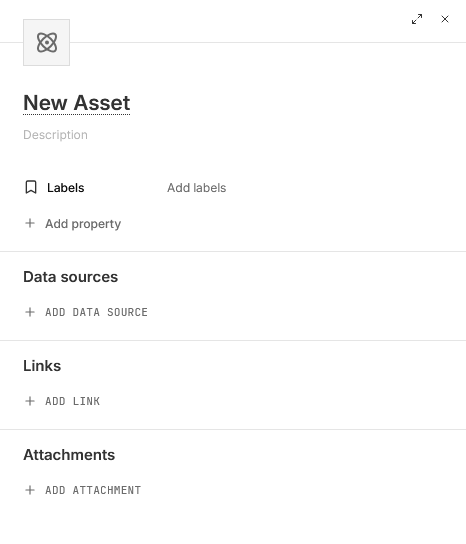
1. In the sidebar, click **Assets**, then **NEW ASSET**.
2. Give the asset a title, and add **Labels** and [properties](https://dev.nominal.io/platform/reference/glossary.md#property "A key-value pair, of type Text or Number, that describes an asset, run, or data source, such as an identifier, context, or a quantity.") (**Add property**) that describe the unit.
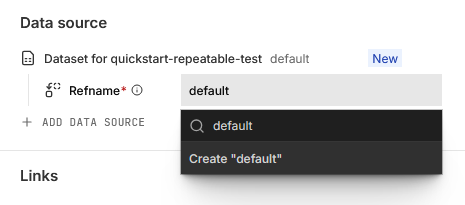
3. Under **Data sources**, click **ADD DATA SOURCE**, then **New dataset**, or pick an existing dataset.
4. Under **Refname**, type `default`, the same on every unit, and click **Create “default”**.
5. Click **CREATE ASSET** and then **View asset** in the notification.
### Record each test session as a run
Start a run on the board’s asset when a test session begins:
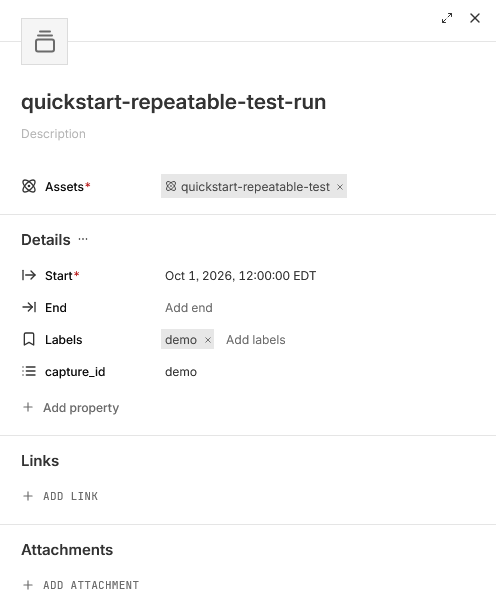
1. On the asset’s page, click the arrow beside **NEW WORKBOOK** in the top right and choose **New run**. You can also create a run by selecting the Runs tab and pressing **NEW RUN**.
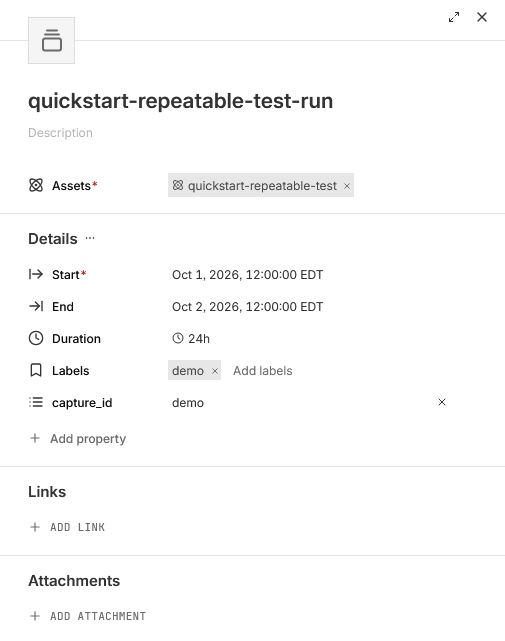
2. Give the run a title, and set its **Start** to when the test began. Leave **End** empty while the test is running. If the test is already over, set **End** too, or, if the asset’s files cover the test, click **Add files** under **Determine bounds with files** and pick the files to set both from them.
3. Add [labels](https://dev.nominal.io/platform/reference/glossary.md#label "A short piece of text for grouping, searching, and filtering assets, runs, data sources, and events, such as prototype or night-flight.") and properties for the test, such as the procedure or its revision, and click **CREATE RUN**.
4. If you left **End** empty, set it under **Details** on the run’s page once the test is over and its data is in.
### Probe a board
In the example below, you move a meter’s probes between test points by hand, and the script records each reading in the board’s dataset, tagged with its test point.
```python
from instro.dmm import InstroDMM
from instro.dmm.drivers import VirtualDMM
dmm = InstroDMM(
name="dmm",
driver=VirtualDMM(), # a simulated meter; swap in your meter's driver
dataset_rid="", # the board's dataset
)
with dmm:
for test_point in ["TP1", "TP2", "TP3"]:
input(f"Probe {test_point}, then press Enter")
reading = dmm.read_dc_voltage(test_point=test_point) # keyword arguments tag this reading
print(test_point, reading.latest)
```
instro names the [channel](https://dev.nominal.io/platform/reference/glossary.md#channel "A named signal: a series of measurements or computed values, such as voltage, pressure, or system state.") after the instrument, not the point probed, so every reading goes to `dmm.dc_voltage`, and its `test_point` [tag](https://dev.nominal.io/platform/reference/glossary.md#tag "A key-value pair on your data points, such as motor_id: 1, that lets you filter a subset of points from a single dataset.") tells the test points apart. This mixes in the [tagged approach](https://dev.nominal.io/platform/data-model/organization/tagged-data.md), so some data may be represented as distinct channels while other data must be split by tag.
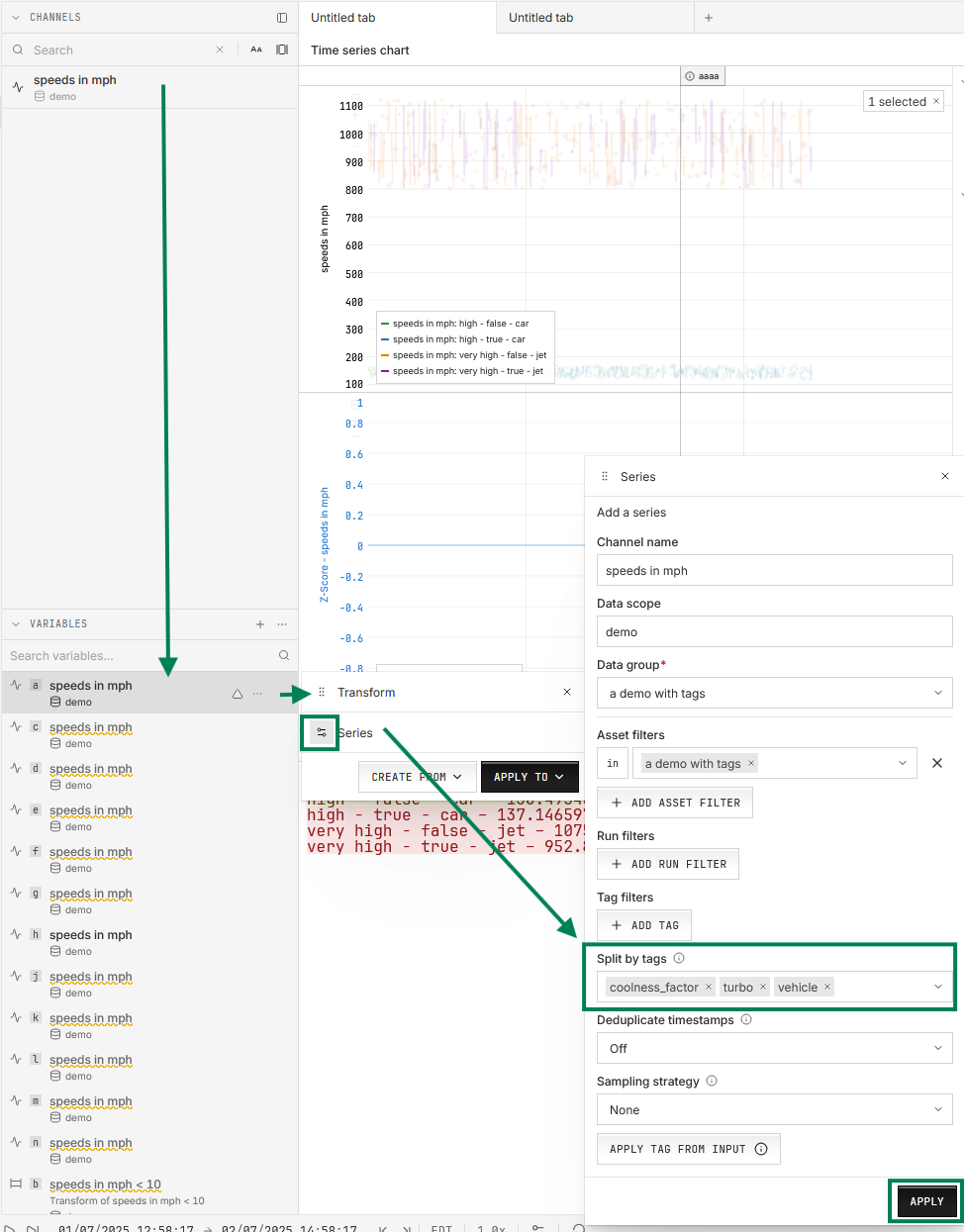
In a workbook, plot each test point as its own series by splitting the variable that plots `dmm.dc_voltage` by `test_point`:
1. In the left sidebar’s **Channels & variables** view, find the **VARIABLES** section, hover over the variable, and click its **Transform** icon.
2. In the **Transform** window, click the settings icon on the **Series** row.
3. In the **Series** window, choose the tag under **Split by tags**, and click **APPLY**.
instro supports sending commands, such as sweeping a [power supply](https://instro.nominal.io/psu/) through its output range, and writes each setpoint to a channel ending in `.cmd` next to the readings. For a tool instro doesn’t drive, such as a logic analyzer, export its capture to CSV and [upload it](https://dev.nominal.io/quickstart/quick/quick-csv.md) to the same board’s dataset.
### Poll at a fixed interval
instro can poll an instrument in the background at a set interval. This permits continuous monitoring of a board during a test without user interaction:
```python
import time
from instro.dmm import InstroDMM, MeasurementFunction
from instro.dmm.drivers import VirtualDMM
dmm = InstroDMM(
name="dmm",
driver=VirtualDMM(), # a simulated meter; swap in your meter's driver
dataset_rid="", # the board's dataset
)
dmm.background_interval = 0.1 # poll every 100 ms
with dmm:
dmm.set_measurement_function(MeasurementFunction.DC_VOLTAGE)
dmm.start() # poll in the background until the block ends
time.sleep(60) # the board runs while the meter records its output
```
The background polling is best effort. instro records its own timing as `dmm.loop_time` and `dmm.daemon_work_time` for diagnostic purposes, and measured data is timestamped on read.
### Watch it live
Open the board’s asset, click **NEW WORKBOOK**, and drag the [channels](https://dev.nominal.io/platform/reference/glossary.md#channel "A named signal: a series of measurements or computed values, such as voltage, pressure, or system state.") you want onto the canvas. To follow the data as it arrives:
1. In the bottom bar, click **GO LIVE**. The button reads **LIVE** while the workbook streams. Click it again to stop.
2. Choose a [time window](https://dev.nominal.io/platform/reference/glossary.md#time-window "The time range currently shown in a workbook. It controls what data Nominal loads and updates when you zoom or pan.") from the dropdown beside it. The default is the last 30 seconds.
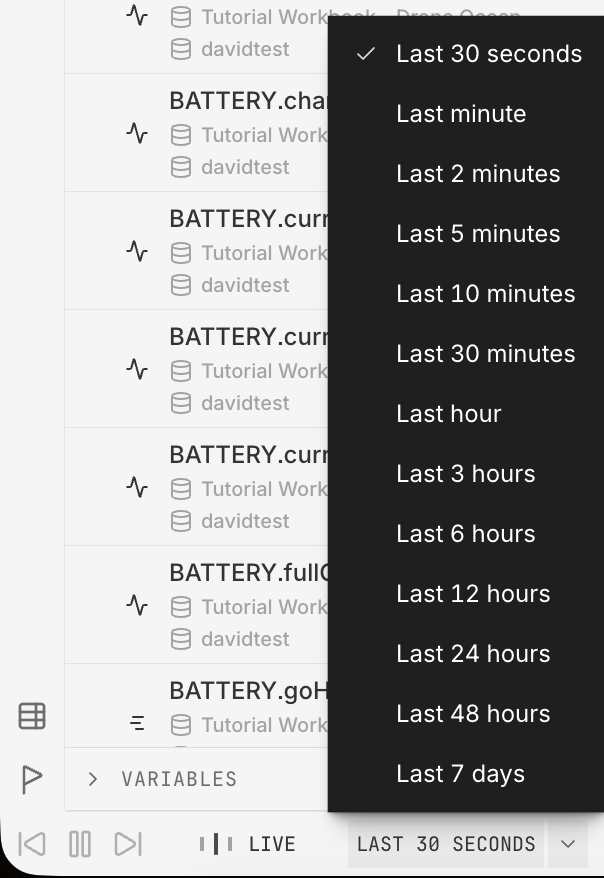
**GO LIVE** isn’t available if the workbook has [time offsets](https://dev.nominal.io/platform/reference/glossary.md#offset "A time shift applied to data without changing its stored timestamps."), if all of its runs have ended, or if its [data source](https://dev.nominal.io/platform/reference/glossary.md#data-source "Anything an asset or run reads time-series data from: a dataset, a connection to an external database, or a video.") can’t stream, such as an external database [connection](https://dev.nominal.io/platform/reference/glossary.md#connection-nominal-data-source "A data source that links to an external time-series database, so Nominal can read data from outside systems.").
[Live monitoring during a test](https://dev.nominal.io/platform/data-model/paradigms/stories/on-console.md) covers building a [workbook](https://dev.nominal.io/platform/reference/glossary.md#workbook "Where you analyze time-series data from assets and runs, in tabs and panels, after a test or live.") layout once and opening it for each board.
## Next steps
- [Live monitoring during a test](https://dev.nominal.io/platform/data-model/paradigms/stories/on-console.md): live layouts, calculations, and missing channels.
- [Repeatable test execution](https://dev.nominal.io/platform/data-model/paradigms/stories/repeatable-runs.md): runs, templates, and comparing runs.
- [Test station development](https://dev.nominal.io/platform/data-model/paradigms/stories/test-engineer.md): one station, with the units swapped through it told apart by tag.
- [Combining the default and tagged approaches](https://dev.nominal.io/platform/data-model/organization/combined.md): each board’s own dataset alongside a shared source tagged by board.
- [instro](https://github.com/nominal-io/instro): instruments, simulators, and publishers.