# Repeatable test execution
Story: “I have a static test station and need to execute tests repeatably and compare their results.”
This page is for engineers who run the same tests on hardware that rarely changes, and need every run recorded the same way so results can be compared and kept on record.
## How to organize your data
In general, users with this story should use the [default approach](https://dev.nominal.io/platform/data-model/organization/per-asset.md). In this approach, there is a single [asset](https://dev.nominal.io/platform/reference/glossary.md#asset "A physical or simulated device or system you track in Nominal, such as a vehicle, a component, a unit under test, or a test stand.") per [unit/device under test](https://dev.nominal.io/platform/reference/glossary.md#unit-under-test-uut "The device or system being tested, also called a device under test (DUT).") (UUT/DUT) and a single [dataset](https://dev.nominal.io/platform/reference/glossary.md#dataset "A store in Nominal for time-series and log data, which grows as you upload or stream more into it.") per UUT which stores every scrap of data associated with the unit. The same [ref name](https://dev.nominal.io/platform/reference/glossary.md#ref-name "The name an asset or run gives each data source attached to it, such as default. Workbooks and checklists find channels by ref name and channel name."), like `default`, is used for every asset-to-dataset link. To find and identify each test case, [runs](https://dev.nominal.io/platform/reference/glossary.md#run "A named, time-bounded period of interest on one or more assets, such as a test, a flight, or a race session.") mark the duration of the test.
```mermaid
---
config:
layout: elk
---
flowchart BT
classDef green fill:#dcfce7,stroke:#15803d,color:#1f2937
classDef red fill:#fee2e2,stroke:#b91c1c,color:#1f2937
classDef purple fill:#e0e7ff,stroke:#4338ca,color:#1f2937
classDef blue fill:#e0f2fe,stroke:#0369a1,color:#1f2937
asset1["Asset: UUT1"]:::green
dataset1[("Dataset
UUT1")]:::purple
dataset1 -->|"ref name=default"| asset1
run1["Run: Test A"]:::red
asset1 --> run1
run2["Run: Test B"]:::red
asset1 --> run2
workbook1["Workbook for
Test Results
Points at one run at a time"]:::blue
run1 -.->|"pointing at A"| workbook1
run2 -.->|"pointing at B"| workbook1
click asset1 href "../../../#asset" "Asset"
click dataset1 href "../../../#time-series-data" "Time-series data"
click run1,run2 href "../../../#runs" "Runs"
click workbook1 href "../../../../workbooks/" "Workbooks"
```
Because every UUT uses the same ref name and [channel](https://dev.nominal.io/platform/reference/glossary.md#channel "A named signal: a series of measurements or computed values, such as voltage, pressure, or system state.") names, analysis built on one UUT’s runs works on every UUT’s runs. [Workbook templates](https://dev.nominal.io/platform/reference/glossary.md#template "A workbook saved without a run or asset, so the same analysis can be applied to each new run or asset.") give each new run or comparison a [workbook](https://dev.nominal.io/platform/reference/glossary.md#workbook "Where you analyze time-series data from assets and runs, in tabs and panels, after a test or live.") with that analysis.
If a source shared by many units, such as a ground station, records data during their tests and tags it with the unit under test, see [Combining the default and tagged approaches](https://dev.nominal.io/platform/data-model/organization/combined.md).
## Walkthrough
### Set up each unit under test
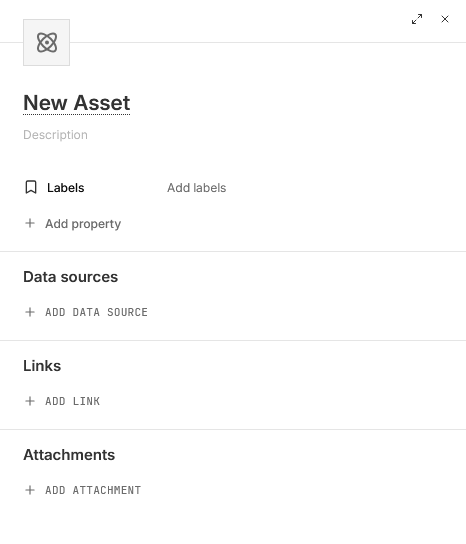
1. In the sidebar, click **Assets**, then **NEW ASSET**.
2. Give the asset a title, and add **Labels** and [properties](https://dev.nominal.io/platform/reference/glossary.md#property "A key-value pair, of type Text or Number, that describes an asset, run, or data source, such as an identifier, context, or a quantity.") (**Add property**) that describe the unit.
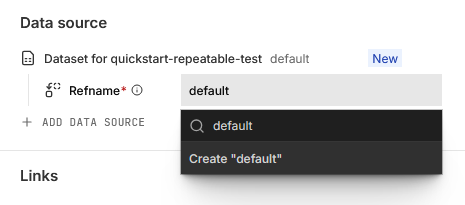
3. Under **Data sources**, click **ADD DATA SOURCE**, then **New dataset**, or pick an existing dataset.
4. Under **Refname**, type `default`, the same on every unit, and click **Create “default”**.
5. Click **CREATE ASSET** and then **View asset** in the notification.
To do the same in code and write a first point:
**Python**
```python
from nominal.core import NominalClient
client = NominalClient.from_profile("default")
# One asset per unit under test, with its own dataset attached under the ref name "default"
asset = client.create_asset("UUT1")
dataset = asset.get_or_create_dataset("default", name="UUT1")
# Write a point to the unit's dataset
with dataset.get_write_stream() as stream:
stream.enqueue("Vsignal", "2026-01-01T12:00:00Z", 5.0)
```
**Rust**
```rust
use nominal::core::{AssetCreate, DatasetCreate};
use nominal::streaming::prelude::*;
use nominal::streaming::stream::NominalDatasetStreamBuilder;
use std::time::UNIX_EPOCH;
let client = nominal::NominalClient::from_profile("default")?;
// One asset per unit under test, with its own dataset attached under the ref name "default"
let asset = client.assets().create(AssetCreate::new("UUT1")).await?;
let dataset = client.catalog().create_dataset(DatasetCreate::new("UUT1")).await?;
client.assets().add_dataset(asset.rid(), "default", dataset.rid()).await?;
// Write a point to the unit's dataset
let token = BearerToken::new(&std::env::var("NOMINAL_TOKEN")?)?;
let stream = NominalDatasetStreamBuilder::new()
.stream_to_core(token, ResourceIdentifier::new(dataset.rid())?, tokio::runtime::Handle::current())
.build();
stream.double_writer(ChannelDescriptor::new("Vsignal")).push(UNIX_EPOCH.elapsed()?, 5.0);
```
**MATLAB**
```matlab
client = nominal.Client.fromProfile();
% One asset per unit under test, with its own dataset attached under the ref name "default"
asset = client.getOrCreateAsset("UUT1");
dataset = asset.getOrCreateDataset("UUT1", "default");
% Write a point to the unit's dataset
stream = dataset.stream();
vsignal = stream.channel("Vsignal");
vsignal.push(datetime("now"), 5.0);
```
**Go**
```go
import (
"time"
"github.com/nominal-io/nominal-api-go/api/rids"
assetapi "github.com/nominal-io/nominal-api-go/scout/asset/api"
"github.com/nominal-io/nominal-api-go/scout/assets"
"github.com/nominal-io/nominal-api-go/scout/catalog"
runapi "github.com/nominal-io/nominal-api-go/scout/run/api"
nominal "github.com/nominal-io/nominal-streaming-go"
)
// httpClient is a conjure-go-runtime httpclient.Client for your Nominal REST API URL,
// token is your API key as a bearertoken.Token, and apiKey is the same key as a string
catalogClient := catalog.NewCatalogServiceClient(httpClient)
assetClient := assets.NewAssetServiceClient(httpClient)
// One asset per unit under test, with its own dataset attached under the ref name "default"
dataset, _ := catalogClient.CreateDataset(ctx, token, catalog.CreateDataset{Name: "UUT1"})
assetClient.CreateAsset(ctx, token, assetapi.CreateAssetRequest{
Title: "UUT1",
DataScopes: []assetapi.CreateAssetDataScope{{
DataScopeName: "default",
DataSource: runapi.NewDataSourceFromDataset(rids.DatasetRid(dataset.Rid)),
}},
})
// Write a point to the unit's dataset
streamClient, _ := nominal.NewClient(apiKey)
stream, _, _ := streamClient.NewDatasetStream(ctx, dataset.Rid.String())
stream.FloatStream("Vsignal").Enqueue(time.Now().UnixNano(), 5.0)
stream.Close()
```
### Record each test as a run
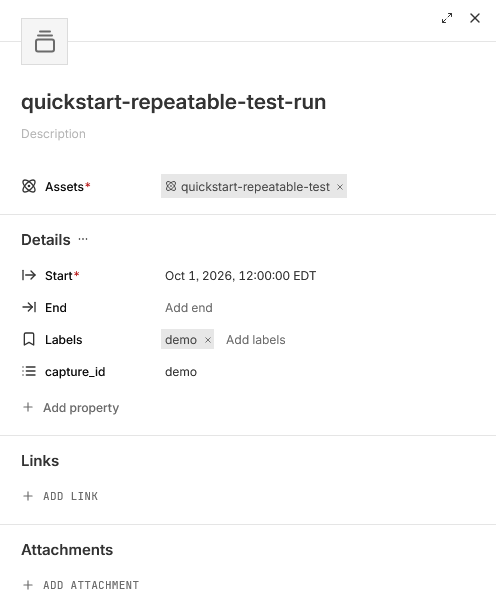
1. On the asset’s page, click the arrow beside **NEW WORKBOOK** in the top right and choose **New run**. You can also create a run by selecting the Runs tab and pressing **NEW RUN**.
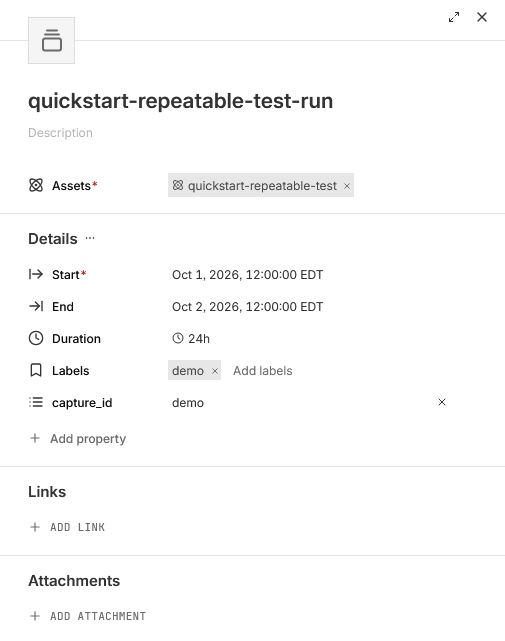
2. Give the run a title, and set its **Start** to when the test began. Leave **End** empty while the test is running. If the test is already over, set **End** too, or, if the asset’s files cover the test, click **Add files** under **Determine bounds with files** and pick the files to set both from them.
3. Add [labels](https://dev.nominal.io/platform/reference/glossary.md#label "A short piece of text for grouping, searching, and filtering assets, runs, data sources, and events, such as prototype or night-flight.") and properties for the test, such as the procedure or its revision, and click **CREATE RUN**.
4. If you left **End** empty, set it under **Details** on the run’s page once the test is over and its data is in.
When you [upload](https://dev.nominal.io/platform/reference/glossary.md#upload "To send a finished file to Nominal, from the app or a client library, so it can be ingested into a dataset.") test files with the upload wizard, you can create the run in the same step by turning on **Create run**. To create runs from code, see [Creating run metadata](https://dev.nominal.io/quickstart/quick/quick-run.md).
### Build the analysis once
1. On a run’s page, click **NEW WORKBOOK** and plot the channels the test is judged on.
2. Open the workbook menu (the logo ▾ at the top left) and choose **File** ▸ **New template**.
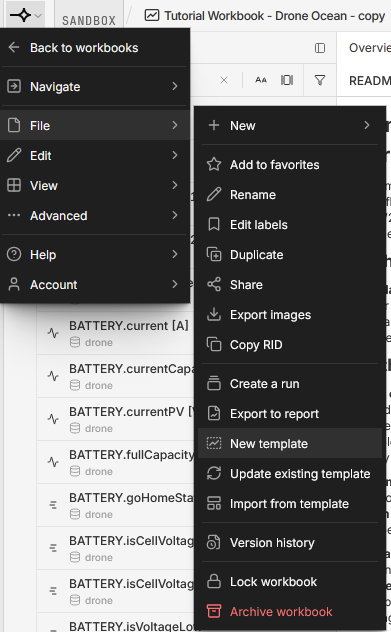
3. In the template editor, preview it against a run, then click **PUBLISH**, enter a **Message**, and click **PUBLISH**.
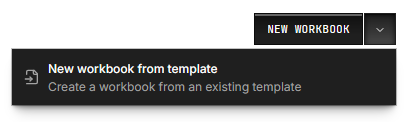
For each new run, click the arrow beside **NEW WORKBOOK** and choose **New workbook from template**.
### Compare runs
Once you’ve recorded a few tests as runs, as in [Record each test as a run](https://dev.nominal.io/platform/data-model/paradigms/stories/repeatable-runs.md#record-each-test-as-a-run), overlay them on one timeline:
1. In a run’s workbook, click the **Data** icon in the left sidebar to open the **DATA** panel, then click **Add data** at the top of the panel.
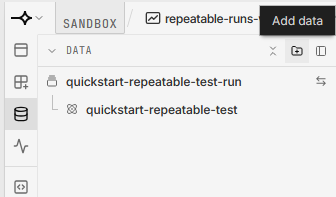
2. If a menu opens, choose **New group**, so each run stays separate. Select the other runs and click **ADD RUN TO THIS WORKBOOK**. With several runs selected, the button counts them, such as **ADD 3 RUNS TO THIS WORKBOOK**.
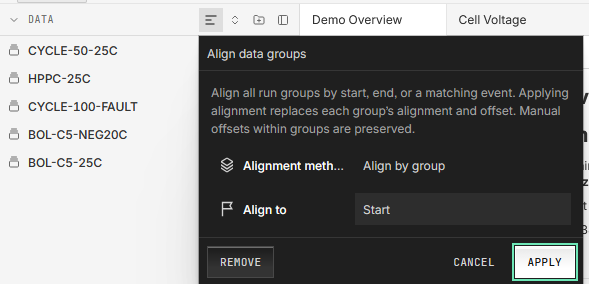
3. To line the runs up, click **Align data groups** in the **DATA** panel’s header, choose **Align by group**, set **Align to** to **Start**, and click **APPLY**.
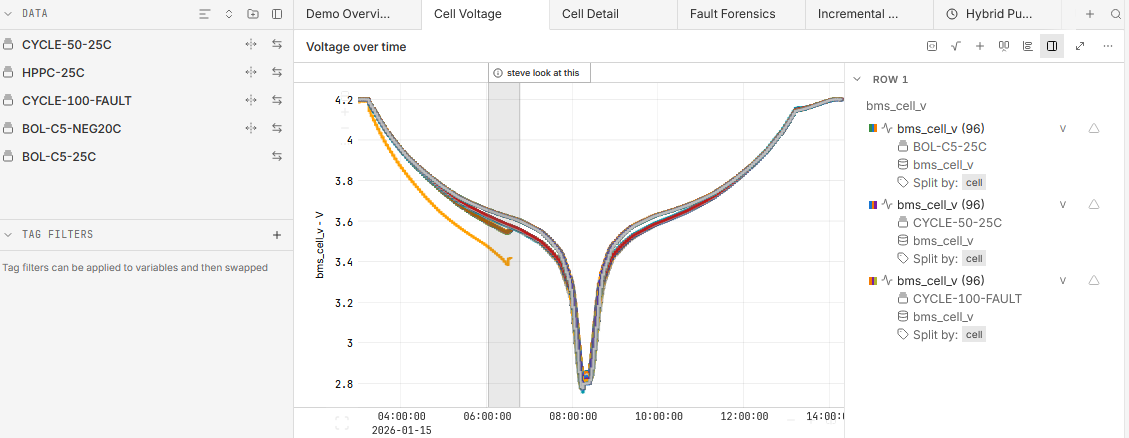
To move a single run instead, see [Line up tests on one timeline](https://dev.nominal.io/platform/data-model/paradigms/stories/post-test.md#line-up-tests).
To compare summary numbers across many runs instead, such as each run’s peak temperature, click **Workbooks** in the sidebar, then the arrow beside **NEW WORKBOOK**, and choose **New comparison workbook**. See [🔒︎Comparison workbooks](https://docs.nominal.io/core/documentation/platform/workbooks/comparison-workbooks).
## Coming from test station development
If your units’ data is already in one dataset tagged by unit, as in [Test station development](https://dev.nominal.io/platform/data-model/paradigms/stories/test-engineer.md), you don’t need to start over. [Handle transitions between approaches](https://dev.nominal.io/platform/data-model/paradigms/stories/test-engineer-stabilizing.md) by giving each unit an asset, and later a dataset, on top of the data you’ve already recorded.
## Next steps
- [Automated pass/fail checks](https://dev.nominal.io/platform/data-model/paradigms/stories/automated-checks.md): check every run against its limits.
- [The default approach](https://dev.nominal.io/platform/data-model/organization/per-asset.md): its extensions for multiple [data sources](https://dev.nominal.io/platform/reference/glossary.md#data-source "Anything an asset or run reads time-series data from: a dataset, a connection to an external database, or a video.") and [tester](https://dev.nominal.io/platform/reference/glossary.md#tester "Another name for a test stand: the equipment that runs tests on a unit under test.") monitoring.
- [Combining the default and tagged approaches](https://dev.nominal.io/platform/data-model/organization/combined.md): each unit’s own dataset alongside a shared source tagged by unit.
- [Using workbook templates](https://dev.nominal.io/quickstart/quick/quick-template.md): open the same analysis on any asset or run.
- [🔒︎Multi-run workbooks](https://docs.nominal.io/core/documentation/platform/workbooks/multi-run-workbooks): overlay and align runs on a shared timeline.