

Creating run metadata#
Mark a period of interest, such as a test or a flight, as a run, so you can find it and compare it with others later.
In code#
from datetime import datetime, timezone
from nominal.core import NominalClient

client = NominalClient.from_profile("default")
asset = client.get_asset("<ri.scout.instance.asset.identifier>")
run = asset.create_run(
    "Test 1",
    start=datetime(2026, 1, 1, 14, 0, tzinfo=timezone.utc),
    end=datetime(2026, 1, 1, 14, 30, tzinfo=timezone.utc),
)
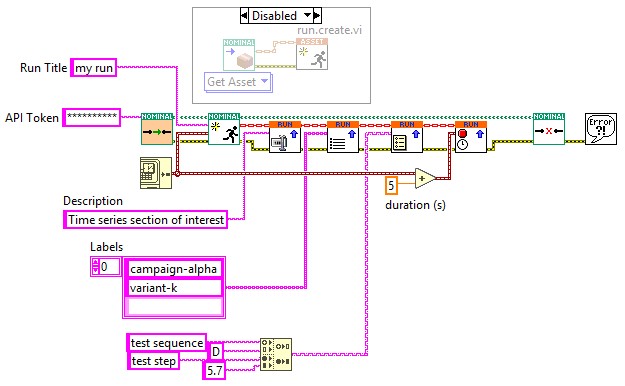
client = nominal.Client.fromProfile();
t0 = datetime("2026-01-01 14:00:00", TimeZone="UTC");
t1 = datetime("2026-01-01 14:30:00", TimeZone="UTC");

r = client.getOrCreateAsset("UUT1").run("Test 1", t0).finish(t1);  % a run starts on an asset
use nominal::core::RunCreate;

let client = nominal::NominalClient::from_profile("default")?;
let start: chrono::DateTime<chrono::Utc> = "2026-01-01T14:00:00Z".parse()?;
let end: chrono::DateTime<chrono::Utc> = "2026-01-01T14:30:00Z".parse()?;
let run = client.runs()
    .create(RunCreate::new("Test 1", start).end(end).assets(["<ri.scout.instance.asset.identifier>"]))
    .await?;
import (
	"github.com/nominal-io/nominal-api-go/io/nominal/scout"
	scoutrids "github.com/nominal-io/nominal-api-go/scout/rids/api"
	runapi "github.com/nominal-io/nominal-api-go/scout/run/api"
	"github.com/palantir/pkg/rid"
)

// httpClient is a conjure-go-runtime httpclient.Client for your Nominal REST API URL,
// and token is your API key as a bearertoken.Token
assetRid, _ := rid.ParseRID("<ri.scout.instance.asset.identifier>")
run, _ := scout.NewRunServiceClient(httpClient).CreateRun(ctx, token, runapi.CreateRunRequest{
	Title:     "Test 1",
	StartTime: runapi.UtcTimestamp{SecondsSinceEpoch: 1767276000},  // 2026-01-01T14:00:00Z
	EndTime:   &runapi.UtcTimestamp{SecondsSinceEpoch: 1767277800}, // 2026-01-01T14:30:00Z
	Assets:    []scoutrids.AssetRid{scoutrids.AssetRid(assetRid)},  // optional
})
In the Nominal app#
On the asset’s page, click the arrow beside NEW WORKBOOK in the top right and choose New run. You can also create a run by selecting the Runs tab and pressing NEW RUN.
Give the run a title, and set its Start to when the test began. Leave End empty while the test is running. If the test is already over, set End too, or, if the asset’s files cover the test, click Add files under Determine bounds with files and pick the files to set both from them.
Add labels and properties for the test, such as the procedure or its revision, and click CREATE RUN.
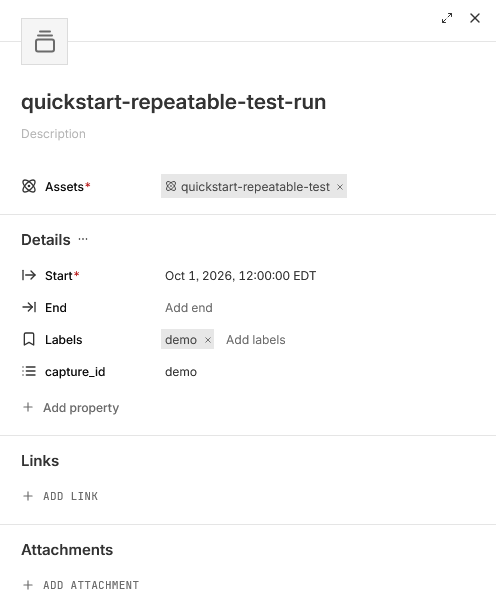
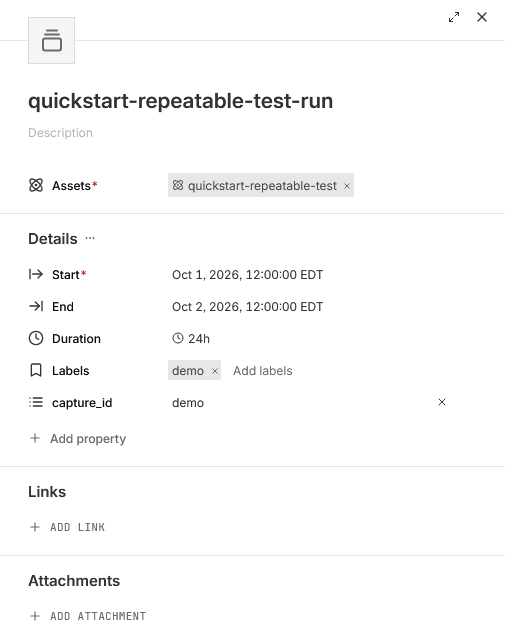
If you left End empty, set it under Details on the run’s page once the test is over and its data is in.
Straight from a dataset#
A run can also point straight at a dataset, with no asset of your own. Nominal creates a hidden asset to hold the link.
In code#
from datetime import datetime, timezone
from nominal.core import NominalClient

client = NominalClient.from_profile("default")
dataset = client.get_dataset("<ri.catalog.instance.dataset.identifier>")

run = client.create_run(
    "Test 1",
    start=datetime(2026, 1, 1, 14, 0, tzinfo=timezone.utc),
    end=datetime(2026, 1, 1, 14, 30, tzinfo=timezone.utc),
)
run.add_dataset("default", dataset)
use nominal::core::RunCreate;

let client = nominal::NominalClient::from_profile("default")?;
let start: chrono::DateTime<chrono::Utc> = "2026-01-01T14:00:00Z".parse()?;
let end: chrono::DateTime<chrono::Utc> = "2026-01-01T14:30:00Z".parse()?;
let run = client.runs().create(RunCreate::new("Test 1", start).end(end)).await?;
client.runs().add_dataset(run.rid(), "default", "<ri.catalog.instance.dataset.identifier>").await?;
In the Nominal app#
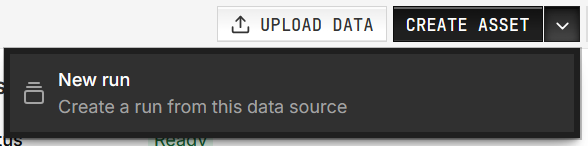
On the dataset’s page, click the arrow beside CREATE ASSET and choose New run.
Enter a Title and set the Time range to cover your data.
Under Data sources, click Edit beside the dataset, enter a Ref name, such as
default, and click SAVE. The run can’t be created until its data source has a ref name.Click CREATE RUN.